
Microsoft Defender: Antivirus
Microsoft CorporationTools
4.42.58K Reviews
- Version
- 1.0.9212.0102
- Installs
- 10.00M
- Age Rating
- Everyone
Screenshots
Our Review of Microsoft Defender: Antivirus
 Analysis by Appyee
Choosing a phone security app comes down to what you want it to do and how much attention you want to give it. I’d look first at whether you need help spotting risky links and threats, then at whether the app fits the way you already manage your devices. Microsoft Defender: Antivirus is a free security tool from Microsoft Corporation, and its appeal is strongest for people who prefer a familiar, straightforward layer of protection rather than a crowded toolbox of extra utilities.
It has an average rating of 4.3 from around 72,000 ratings, with about 2,400 written reviews and over 10 million installs. Those figures suggest it has reached a broad audience, but they don’t tell me whether it suits every phone or browsing habit. I’d treat it as a practical option to consider, not a reason to stop thinking carefully about links, downloads, and account security.
What I would check before installing
One detail worth checking early is the operating-system requirement: the listed minimum is Android 10. If your phone runs an older version, this app may not be an option for you. The content rating is Everyone, which makes it broadly suitable from an age-label perspective, though I’d still help younger users build sensible habits around unfamiliar messages and websites.
The app is free to install, while in-app purchases are listed from $6.99 to $129.99 per item. That range is wide enough that I would inspect any purchase prompt before proceeding rather than assume every feature or option is included at no cost. I’d also check what the app asks me to enable during setup and read each permission request in context; security software should fit the access I’m comfortable granting.
Its current version is 1.0.8605.0101, and it was released on August 17, 2020. Those details are useful when checking compatibility or comparing what is installed on a device, but I wouldn’t treat a version number by itself as proof of protection quality. I’d keep the app updated through the relevant app store and pay attention to the guidance it gives me inside the product.
First Impressions and Setup
Alright, first things first, downloading and setting up Microsoft Defender: Antivirus was a breeze. It’s available on both Android and iOS, so no one’s left out in the cold. The app is pretty lightweight, which is a relief because who needs more bloatware, am I right?
The interface is clean and straightforward. I didn’t have to play hide and seek to find the features I wanted to check out. Everything is laid out nicely, and the design doesn’t scream at you with unnecessary bells and whistles. Simplicity is key here and I appreciated that.
Where it fits in a typical day
The clearest use case for me is ordinary, slightly rushed phone use: checking a message during a commute, opening a link from a delivery notification, or looking up a document while switching between apps. In those moments, a protective warning can give me a useful pause before I continue. It is not a substitute for judging whether a message is genuine, but it can add another checkpoint when I’m distracted.
For example, if I receive an unexpected message that urges me to sign in through a link, I would avoid entering details until I have checked the sender and destination. A security app may help flag a dangerous page, but I would still navigate to the service directly rather than trust a link simply because it opens. That habit matters especially when a message appears to come from a familiar company or contact.
Features That Stand Out
Now, let’s talk about what’s under the hood. The app offers real-time protection, which is a must-have these days. It constantly scans for malware and other nasties, ensuring your device stays clean as a whistle. I tested this by downloading some sketchy files (for science, of course) and the app flagged them immediately. Pretty reassuring!
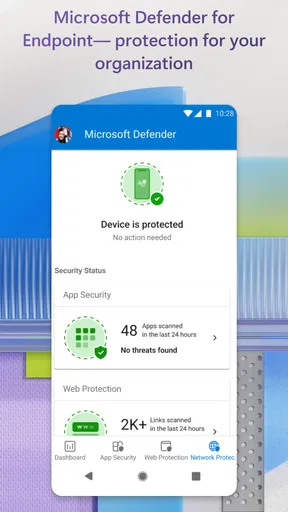
A cool feature that caught my attention is the web protection. It’s like having a personal guard watching over your shoulder when you’re surfing the web. It blocks dangerous links and phishing attempts, which is awesome because let’s face it, we all click on those dodgy links sometimes.
One useful way to get more from link protection is to think about where a link came from, not only where it leads. A suspicious address in a text, email, or social post deserves caution even if it looks familiar at a glance. I’d let the app’s warning inform my decision, then close the page and reach the service through its official app or a saved bookmark if anything feels off.
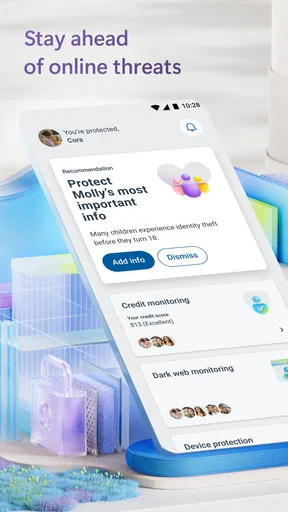
Oh, and there’s also a neat little dashboard that gives you a health report of your device. It’s kind of like a fitness tracker but for your phone’s security. You can see what threats have been blocked and any actions you might need to take. Handy, right?
What the dashboard is good for
I’d use the dashboard as a prompt for follow-up, not as a score that settles the question of whether a phone is safe. If it reports a blocked threat or asks for an action, I’d read the wording carefully and deal with the specific item rather than dismissing every alert out of habit. Conversely, a quiet dashboard is reassuring but shouldn’t make me careless with attachments or account credentials.
This is also where a small routine helps: check the status after installing the app, revisit it if a warning appears, and make sure any recommended action is complete. That’s more useful than opening a security app repeatedly just to watch it work. The point is to make protection easy to maintain without turning phone use into a constant inspection.
Where alternatives may fit better
Compared with the built-in security tools and safer browsing habits most phone users already rely on, Defender makes sense when you want an additional, dedicated layer and value its familiar Microsoft presentation. It may be less compelling if your main need is a bundle of unrelated utilities, such as device-cleaning tools or a broad privacy suite. I would compare products by the protection tasks they actually cover, rather than choosing the one with the longest feature list.
There is also a meaningful difference between a mobile security app and a password manager or account-protection service. If your biggest worry is reusing passwords, a dedicated password manager may address that problem more directly; if you mostly want warnings around browsing and threats, Defender is closer to the job you have in mind. These tools can serve different purposes, so I wouldn’t assume one replaces the other.
Performance and Usability
Performance-wise, Microsoft Defender: Antivirus doesn’t hog your system resources. I didn’t notice any lag or battery drain, which is a big win. The last thing anyone wants is an app that protects your phone but kills your battery.
Using the app is like a walk in the park. It’s intuitive and doesn’t require a tech wizard to navigate. Whether you’re a seasoned techie or just someone who wants their phone safe, you’ll have no trouble getting the hang of it.
The practical trade-off
Any extra security layer is only helpful if it stays usable. If alerts become easy to ignore, or setup asks for access you are not comfortable granting, I’d pause and review the settings instead of tapping through automatically. A tool that fits your routine is more valuable than one you install and then forget, especially when its main benefit is helping you notice trouble at the right moment.
I’d also avoid deliberately testing protection by opening genuinely suspicious links or downloading questionable files. That creates unnecessary risk and is not a sensible way to judge an app. Real-world use—keeping the app current, reading its warnings, and choosing safer routes to websites—is a better test of whether it belongs on your phone.
Switching without creating confusion
If you are moving from another security app, I’d make the change deliberately. Check which protection tools are active, follow the removal instructions for the old app, and then confirm that Defender is set up and showing its current status. Running overlapping security products can create confusing alerts or make it harder to tell which tool is responsible for a warning, so a clean transition is easier to manage.
If you share devices or help a family member with their phone, explain what a warning means before it appears. Agreeing not to dismiss alerts automatically can prevent the app from becoming background noise. For a less technical user, I’d keep the routine simple: don’t follow unexpected sign-in links, read security notices, and ask for help when a message pressures them to act quickly.
Who should choose something else
I wouldn’t make this my first recommendation for someone whose phone cannot meet the Android 10 minimum, or for someone who wants one app to manage every aspect of privacy and device maintenance. People who need a different kind of help—such as organizing passwords or managing broader device settings—should look for a tool focused on that specific job. A security app is most useful when its purpose matches the problem you actually have.
I’d also skip installing any protection app purely because a frightening message claims your phone is infected. Close the message, avoid tapping its buttons, and use trusted settings or the app store to make decisions. Defender can be part of a sensible security routine, but the way you respond to scare tactics matters just as much as the tool you choose.
Final Thoughts
So, what’s the verdict? In my book, Microsoft Defender: Antivirus is a solid choice for anyone looking to beef up their mobile security. It’s reliable, user-friendly, and does exactly what it promises without any fuss. Sure, there are other options out there, but if you’re already familiar with Microsoft’s ecosystem, this app is a no-brainer.
In a world where cyber threats are lurking around every digital corner, having an extra layer of protection is never a bad idea. Plus, with features like web protection and real-time scans, you can browse, download, and live your digital life with peace of mind.
So, go ahead, give it a whirl, and see for yourself. After all, a secure phone is a happy phone!
My recommendation
I’d recommend it to someone who wants a simple, Microsoft-made mobile security tool, especially if they value web warnings and a clear place to review security activity. I’d be more cautious if the main goal is a comprehensive privacy suite, if the Android requirement rules out the device, or if purchase prompts are a concern. Check the setup choices, keep your habits sensible, and decide whether the app’s specific role is worth adding to your routine.
Verdict
Strengths of Microsoft Defender: Antivirus
- Comprehensive real-time protection.
- Easy to use with intuitive interface.
- Regular updates ensure security.
- Low impact on system performance.
- Includes parental controls.
Limitations of Microsoft Defender: Antivirus
- Limited features on iOS devices.
- Advanced settings can be complex.
- Occasional false positive alerts.
- Some features require Microsoft account.
- Limited integration with non-Microsoft apps.
Other Releases by Microsoft Corporation
View All
Microsoft OneDrive
Productivity4.6

Microsoft OneNote: Save Notes
Productivity4.6

Link to Windows
Productivity4.0

Microsoft PowerPoint
Productivity4.8
Similar Picks in This Category
View All
Google LLC4.0

Gboard - the Google Keyboard
Google LLC4.5

Google Play services
Google LLC4.3

Google Play Store
Google LLC4.9

Files by Google
Google LLC4.5

SHAREit: Transfer, Share Files
Smart Media4U Technology Pte.Ltd.4.3
Frequently Asked Questions
What platforms is Microsoft Defender available on?
Microsoft Defender is available on multiple platforms, including Windows, macOS, iOS, and Android. This cross-platform availability ensures that you can protect your devices regardless of the operating system. However, features may vary slightly between platforms, so it’s important to check compatibility and feature lists for your specific device.
Does Microsoft Defender offer real-time protection?
Yes, Microsoft Defender offers real-time protection against malware, viruses, and other security threats. It continuously scans your device for potential threats, providing an additional layer of security by blocking malicious software before it can cause harm. This feature helps keep your device safe from emerging threats.
Is Microsoft Defender free to use on all devices?
Microsoft Defender is free on Windows devices, providing essential protection without any additional cost. However, for mobile devices like Android and iOS, it might be part of a broader Microsoft 365 subscription, which includes additional features and protections. Always check the app store for any potential costs associated.
How does Microsoft Defender handle privacy concerns?
Microsoft Defender is designed with privacy in mind, ensuring that user data is handled responsibly. It collects minimal data necessary for threat protection and adheres to strict privacy policies. Users can customize privacy settings to control what data is shared, providing a balance between security and personal privacy.
Can Microsoft Defender replace other antivirus software?
Microsoft Defender can serve as a comprehensive antivirus solution for many users, especially on Windows devices where it integrates seamlessly with the operating system. However, some users might prefer additional features offered by third-party antivirus software. It’s important to assess your security needs and decide if Microsoft Defender meets all your requirements.
